Lighting is the difference between a flat, boring 2D game and atmospheric experience. When I started building Merciless Warrior, I knew that I wanted the player to feel the darkness and the warmth of the world.
However, implementing lighting in a framework like Java Swing (which is not designed for high-performance game graphics) was a massive challenge. I struggled with this for weeks. I would try an approach, watch the FPS drop, get frustrated, and delete the code. I’d go work on the inventory system or combat logic just to feel productive, but the lack of atmosphere always pulled me back.
Here is the story of my failed attempts, and the specific optimization that finally fixed everything.
The Naive Approach - Cutting Holes
My first idea was geometric. I thought that if I want darkness, I need to draw a black rectangle over the screen. If I want light, I’ll cut a circle out of that rectangle.
I tried using Java’s Area class to perform constructive geometry (subtracting an ellipse from a rectangle every single frame).
| |
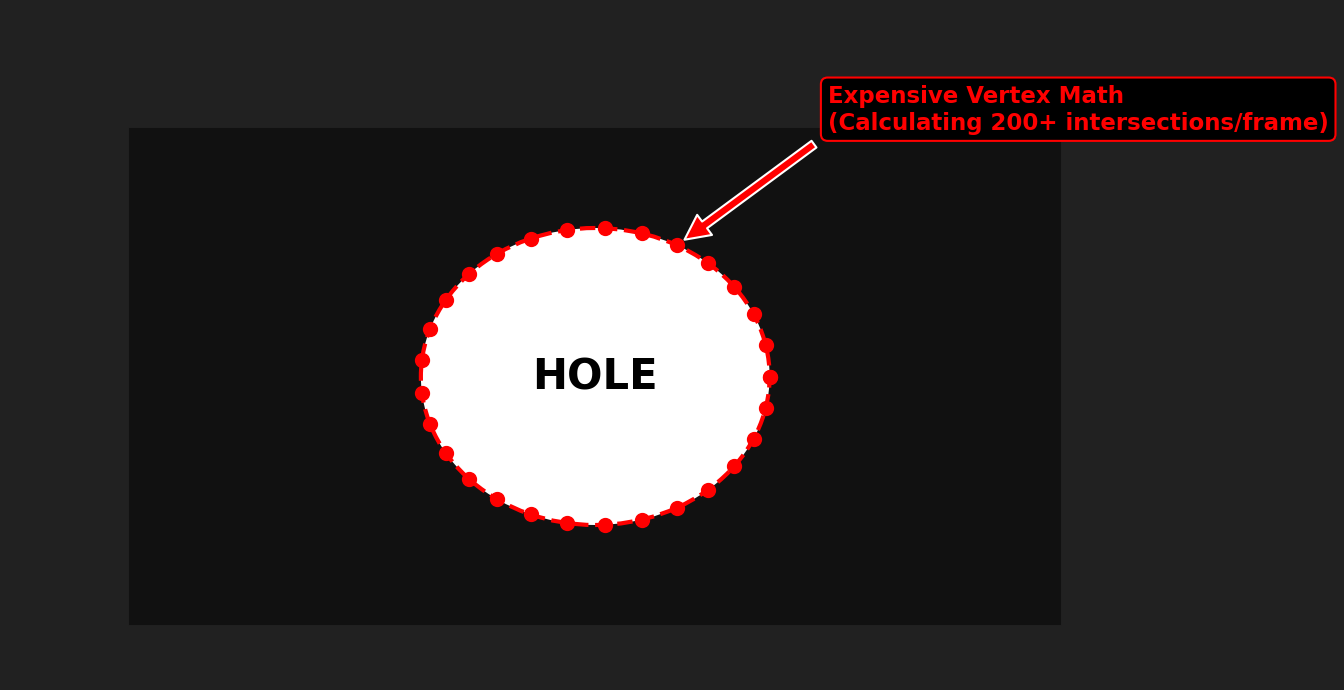
The Result: The game went to 5 FPS. Calculating complex geometry intersections on the CPU ~200 times a second is simply too expensive, especially with multiple light sources.
The Solution - Alpha Compositing
I realized I needed to stop thinking about geometry and start thinking about blending modes. Instead of cutting shapes, I needed to erase pixels from an image.
I switched to using a BufferedImage as a lightmap.
- Fill the image with a semi-transparent black color (Ambient Darkness).
- Set the Graphics Composite mode to
DST_OUT. This mode dictates that whatever I draw next will remove the transparency from the destination image. - Draw my lights onto this map.
Here is the core logic from my LightManager:
| |
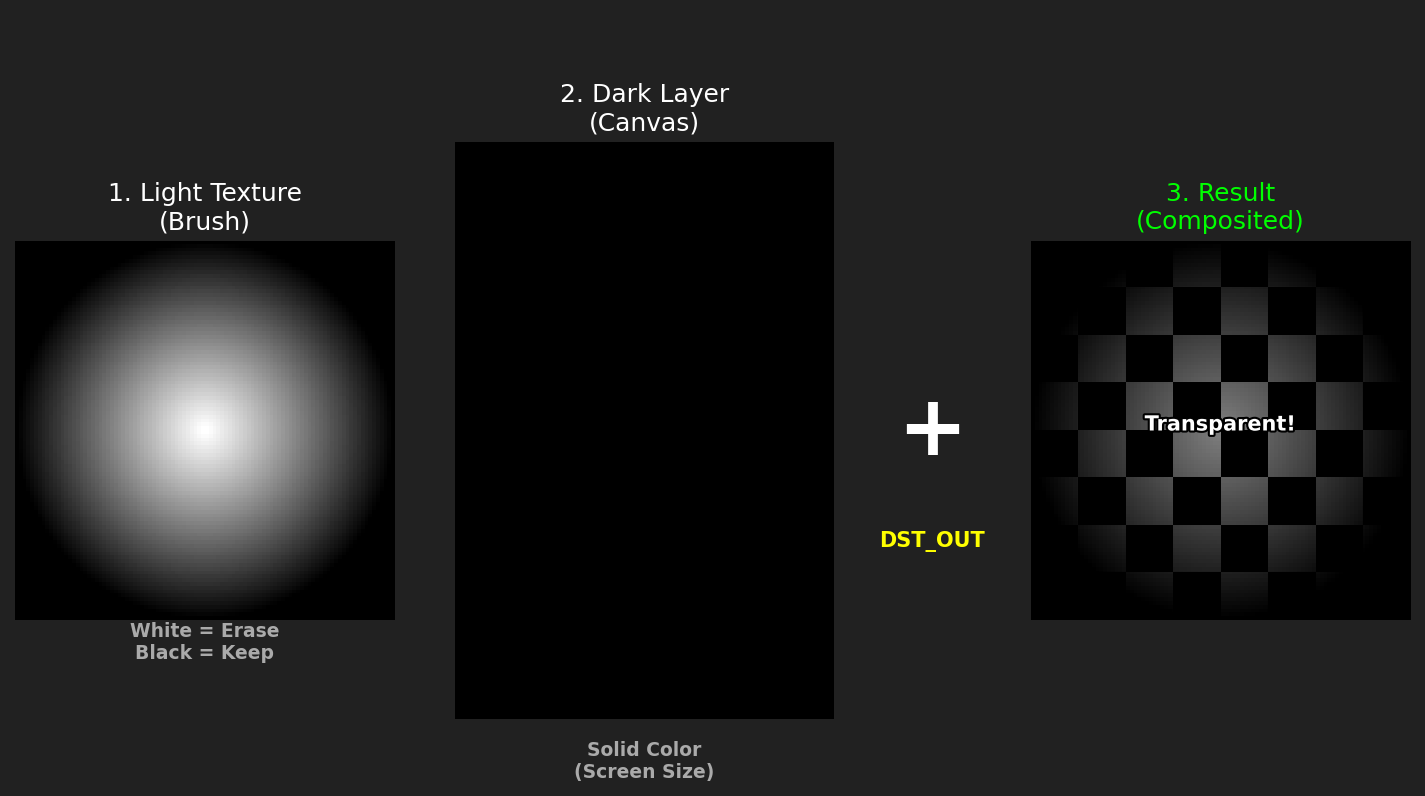
Better, but still laggy. Drawing RadialGradientPaint from scratch for every torch, every frame, was still chewing up the CPU. I gave up and went back to working on enemy AI.
Optimization 1 - Texture Caching
One day I got idea to use cache. Generating a smooth gradient for a torch or the player’s aura is expensive. If I have 20 torches on screen, I shouldn’t calculate 20 gradients every frame.
I implemented a caching. I pre-render the gradients into BufferedImage objects once during startup.
| |
Now, the render loop just draws existing images onto the screen, which is what Java’s Graphics2D is best at.
Optimization 2 - Downscaling
Even with caching, main FPS problem was still there. Constant FPS drops. This was the final trick that solidified the FPS. Lighting in games is naturally fuzzy and soft. It doesn’t need to be pixel-perfect sharp.
I introduced a LIGHTMAP_SCALE factor (set to 2).
- I create the lightmap at half the resolution of the game window.
- I do all the drawing and erasing on this smaller image (4x fewer pixels to process!).
- I stretch the image back up to full size when drawing it over the game world.
| |
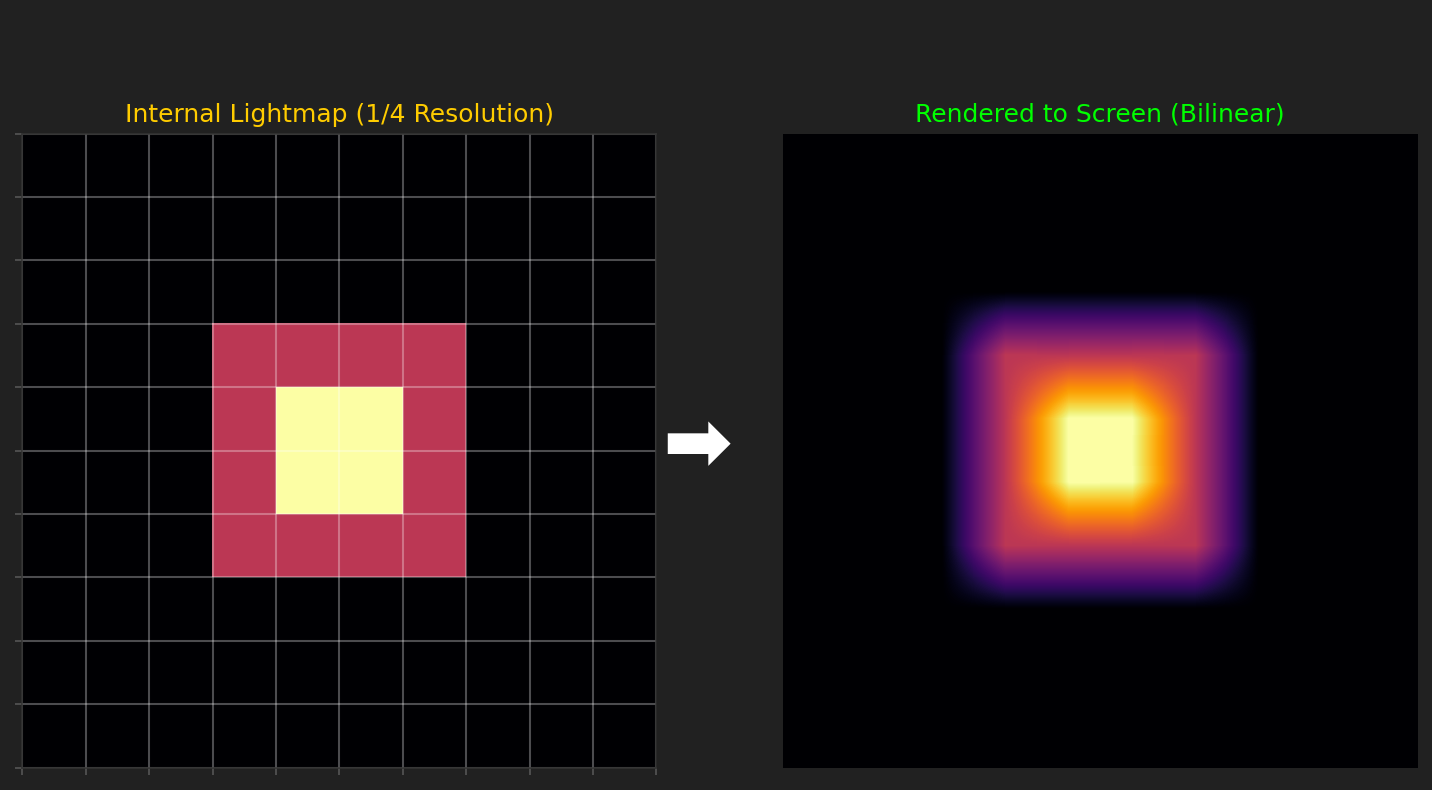
Using bilinear interpolation smoothes out the pixelation from the upscaling, making the lights look even softer and more natural, while drastically reducing the CPU load.
Advanced Effects - Day/Night Cycle
With the performance budget secured, I added a TimeCycleManager.
Instead of a static darkness, the ambientAlpha value interpolates between colors based on the game time.
- Night: High alpha (dark), Dark Blue tint.
- Dawn/Dusk: Orange/Purple tint.
- Day: Low alpha (bright), Yellow tint.
I even added a breathing effect to torches using a simple sine wave function to modulate the size of the light texture slightly every frame, making the fire feel alive.
Conclusion
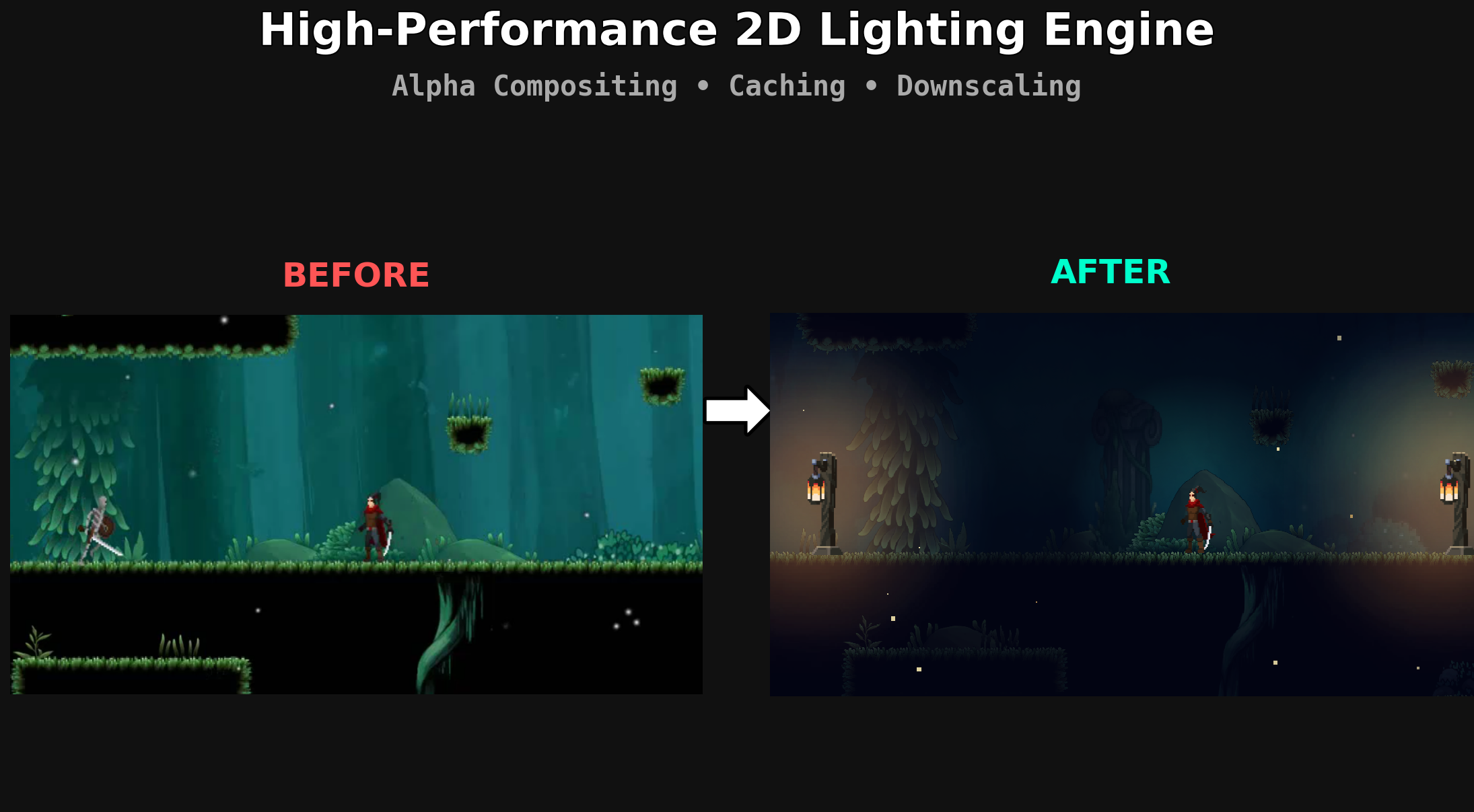
This feature was a test of perseverance. It would have been easy to stick with the geometric approach and accept a laggy game, or just remove lighting entirely. But by stepping away, working on other things, and coming back with a fresh perspective (and learning about downscaling), I turned the engine’s biggest bottleneck into its best visual feature.